


PhotoGrid: Video Collage Maker
4.7604.00 Reviews
App Specs
- Version
- 9.25
- Updated On
- License
- Free
- Downloads
- 10,000,000+
- Developer
- PhotoGrid Corporation
- Categories
- Photography
- Platform
- Android, iOS
Screenshots



 Analysis by AppCompare
I often want a photo collage to tell a little story, not just arrange several pictures in a grid. That is where PhotoGrid: Video Collage Maker makes sense to me: it brings photos and video clips into a single editing space, with collage-making at the center. Its appeal is less about replacing a dedicated professional editor and more about making a personal, shareable composition without turning a quick idea into a technical project.
The feature I find most useful is the way a collage can combine different moments in one layout. A set of still images can show a sequence, while short video clips add movement and sound. That distinction matters: a collage is not automatically better than a simple album or one edited video. It works best when each panel contributes something different, such as a before-and-after, a few angles of the same place, or small highlights from an outing.
Why a mixed photo-and-video collage can work
A conventional photo-grid app is usually strongest when all you need is a tidy arrangement of still images. A standalone video editor, meanwhile, is more suitable when timing, transitions, and a continuous narrative are the main priorities. PhotoGrid sits between those approaches. I would reach for it when I want a compact visual recap that keeps several moments visible together rather than making viewers watch a sequence from start to finish.
That makes the format handy for a casual social post, a family update, or a small collection of product or craft photos. It can also be useful when a single picture feels incomplete: a collage lets me show the setting, a close-up, and the finished result together. The trade-off is that a busy layout can make every image feel smaller and harder to read, so choosing fewer, more distinct moments is often better than filling every available space.
A practical workflow, not just a template choice
When I plan a collage, I first decide what it needs to communicate, then pick the photos and clips that support that idea. For a day out, for example, I might use one wide shot, one detail, and a brief moving moment rather than several nearly identical pictures. That selection step does more for the finished result than adding another sticker or effect. Once the material is chosen, a template gives the pieces a shared structure, while text or a filter can help bring the set together.
If I include video, I treat each clip as a small accent rather than trying to squeeze a full-length recording into a grid. The built-in editor’s trimming and merging tools are useful for shaping those moments, but a collage still has limited visual space. A short clip with a clear subject is easier to understand than footage that needs a long build-up. I also check the composition before sharing: text should not cover faces or important details, and filters should not make neighboring panels look as if they came from different occasions.
Where the AI remover fits
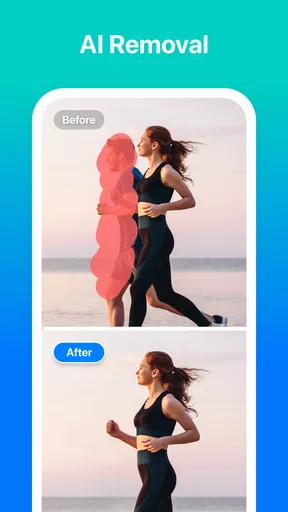
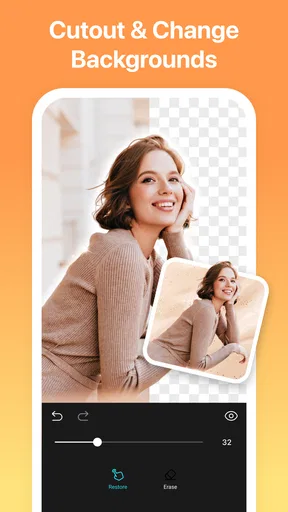
The app’s AI remover is an appealing extra when an unwanted object distracts from an otherwise good image. In a collage, this can matter more than it might in a single photo: one distracting detail repeated in a small panel can pull attention away from the whole arrangement. I would use removal selectively, on a clear, isolated object and in a picture where the surrounding background is relatively simple. The result is worth checking at full size before the image is placed into a template, because a small edit can look less convincing when it is enlarged or surrounded by crisp neighboring photos.
Worth Reading Before You Choose

EA SPORTS FC Mobile 26 Is a Bigger Football Game, but It Takes Time

Flipboard Shows What News Apps Must Do Beyond the Feed

Switching to Android Auto Means Rethinking Your Driving Routine

Google Calendar Makes a Crowded Week Easier to Manage

Ludo King Makes the Most of the Minutes Between Plans

Baby Panda World Brings Quick Play to Modern Phones, but Its Game Library Feels Busy
I would not treat an automatic remover as a guarantee that every complicated scene will be repaired invisibly. Busy patterns, overlapping people, or an object that crosses important edges are harder cases for any such tool. If the edit looks artificial, changing the crop or choosing another photo may be the cleaner fix. That is a useful way to think about the feature: it can rescue a distracting image, but good source material and careful selection still do most of the work.
Getting Started with PhotoGrid
First off, downloading PhotoGrid: Video Collage Maker is a breeze. Available on both Android and iOS, you'll find it in your app store ready to give your creativity a boost. Once installed, the interface is pretty intuitive. You’re greeted with a clean and organized layout which is super inviting, especially if you’re diving into the world of video collaging for the first time.
User Interface and Ease of Use
The app shines with its user-friendly design. You don't need to be a tech whiz to navigate through the features. Everything is well-labeled, and the app guides you through the process of creating your first collage. Whether it’s a photo collage or a video mash-up you’re aiming for, the steps are straightforward. Trust me, even a first-timer can whip up something impressive.
For a low-pressure first project, I would start with a handful of photos from one occasion, then decide whether a video clip genuinely adds context. It is easy to overdecorate a collage when the template, filters, text, and stickers are all available, but a clear subject is more useful than a crowded design. I like to finish one version, pause, and look at it as a viewer would on a phone screen. If the main moment is not obvious at a glance, I simplify the layout before adding anything else.
Features That Stand Out
Oh, where do I start? Let’s dive into some of the fantastic features that PhotoGrid offers:
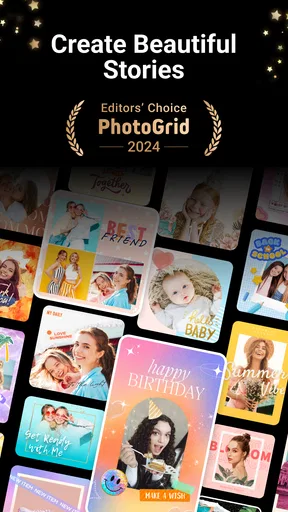
- Collage Templates: With over 300 collage templates, you have endless possibilities. Whether you want a classic grid or something more whimsical, there’s a template for every mood and occasion.
- Video Editor: The built-in video editor is a game changer. You can clip, trim, and merge videos with ease. Add music from your own library or choose from the app’s collection to give your collage that perfect vibe.
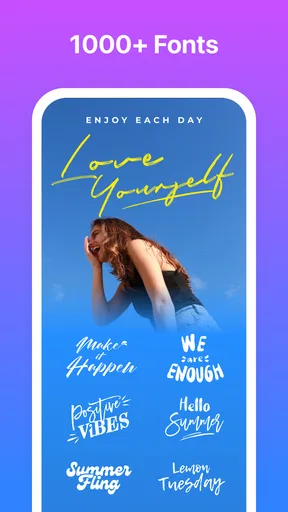
- Stickers and Text: Express yourself with a variety of stickers and text options. From cute emojis to stylish fonts, you can personalize your collages to your heart’s content.
- Filters and Effects: Transform your photos and videos with a range of filters and effects. Want to give your vacation snaps a vintage feel or add a pop of color? You got it!
The range of tools is helpful, but I would not use all of them just because they are there. For a small event recap, a consistent filter and a brief caption may be enough; a large sticker can compete with the photos and make the collage feel more like a poster. One practical approach is to pick a visual priority first—faces, a product, or a particular place—and keep decoration away from that area. This makes the app’s options easier to manage and helps the result stay readable when viewed in a feed.
Performance and Reliability
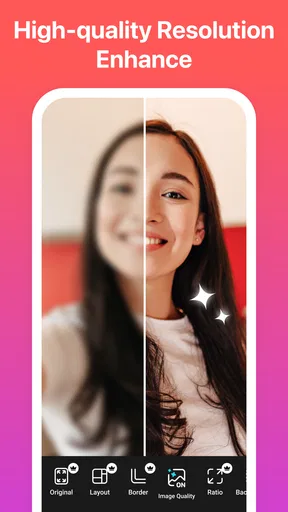
Now, let’s talk about how the app performs. I’ve used it on both Android and iOS devices, and it runs smoothly on both. There’s no annoying lag or crashes, which is a big plus in my book. It handles high-resolution photos and videos like a champ, so you don’t have to worry about compromising on quality.
For an everyday workflow, I would keep the original images untouched and treat the collage as a separate finished composition. That gives me room to try a different template or crop without losing the source picture I may want for another use. It is also worth reviewing the result at its intended viewing size: tiny text that seems legible while editing can become difficult to read once a collage is viewed in a social feed. If the words matter, I keep them short and give them enough clear space.
How it compares with other editing choices
Compared with a basic gallery collage maker, PhotoGrid is more appealing when the project mixes motion and stills or needs a little finishing beyond arranging pictures. Against a full video editor, it is the simpler choice when the goal is a compact collage rather than a carefully paced film. I would choose a dedicated editor for a longer story with precise timing, layered audio, or detailed control over transitions. For a quick visual summary, a collage-focused workflow is less involved and keeps the images visible together.
There is also a useful distinction between making a collage and editing each source image. PhotoGrid can help assemble and decorate a composition, but it is not the choice I would make when a photograph needs extensive color correction or detailed retouching. In that case, I would prepare the image elsewhere and bring the finished version into the collage. This two-step approach avoids trying to solve every editing problem in one place and keeps the final layout focused on the story.
Who will get the most from it
I think PhotoGrid suits people who regularly share visual recaps and want photos, short clips, text, and decorative touches in one approachable project. It is particularly comfortable for someone who values speed and variety over fine-grained editing control. A small business owner could use a collage to show several views of a finished handmade item, while a parent might make a simple recap of a school event for relatives. In both cases, selecting clear images matters more than using every available effect.
It is less compelling for someone who mainly wants a clean, unedited photo album, or for a creator whose work depends on exact video timing and a polished, continuous soundtrack. It may also feel excessive if you only need to put two pictures side by side once in a while. In those situations, a phone’s built-in editing tools or a more specialized editor may be a better fit. The useful question is whether you expect to make collages often enough to appreciate having photos and video tools together.
PhotoGrid is a free photography app from PhotoGrid Corporation, with a 4.6 average from around 88,000 ratings and more than 10 million installs. It is rated for Everyone, and version 9.22 requires Android 9 or later. The app is free to download, while in-app purchases range from $0.99 to $99.99 per item. I would try the free experience with a small, ordinary project first and decide whether the available tools suit my routine before considering any purchase.
Community and Sharing Options
One of the coolest aspects of PhotoGrid is its built-in community. You can explore creations by other users, get inspired, and even share your masterpieces. Sharing options are vast; post directly to Instagram, Facebook, or any other social media platform you fancy. It’s all about showcasing your creativity and connecting with others who share your passion.
For me, browsing other people’s work is most useful as a source of layout ideas, not as a reason to imitate a finished design. I might notice how a simple grid handles a set of travel photos, then adapt the idea to my own images and keep the text minimal. Before sharing, I check that the collage makes sense without extra explanation: the order of moments should be clear, and a caption should add context rather than repeat what the pictures already show.
A realistic example is putting together a quick weekend recap after getting home. I would choose a few distinct photos, add one short clip that captures movement or sound, and use a template that gives each moment enough room. If one picture has a distracting object, I could test the remover on that image before committing to the layout. Then I would check the text and overall balance on a small screen. This is a practical use of the app’s mixed-media approach, without turning a casual memory into a lengthy editing session.
Final Thoughts
So, what’s the verdict on PhotoGrid: Video Collage Maker? Well, it’s a fantastic tool for anyone looking to jazz up their photos and videos. Whether you’re a social media influencer or just someone who loves to play around with images, this app has something for you. Its plethora of features, ease of use, and reliable performance make it a top pick in the collage-making arena.
My recommendation is more specific: I would choose it when I want a ready-to-share collage that brings still images and short video moments together, especially when a template can give a mixed set of memories a clear shape. I would skip it for work that calls for detailed retouching or exact control over a longer video. Keeping that distinction in mind makes it easier to judge the app on what it does best rather than expecting one editor to cover every creative task.
If you haven’t tried it yet, I’d say give it a shot. It’s free to download, with some in-app purchases for additional features, but the basic version is more than enough to get started. So go ahead, unleash your creativity, and let PhotoGrid be your guide to crafting beautiful collages!
Pros
- User-friendly interface for quick editing
- Wide range of templates and filters
- Supports multiple photo and video formats
- Regular updates with new features
- Seamless social media sharing options
Cons
- Contains ads that can be distracting
- Some features locked behind paywall
- Occasional lag with high-resolution files
- Limited free music options for videos
- Watermark on videos in free version
FAQs for PhotoGrid: Video Collage Maker
What features does PhotoGrid: Video Collage Maker offer?
PhotoGrid: Video Collage Maker offers a variety of features including video and photo editing, collage creation, and a vast library of filters and stickers. Users can create dynamic video collages with ease, apply text overlays, and even access themed templates for special occasions. It’s a versatile tool for both casual users and content creators.
Is PhotoGrid free to use, or are there in-app purchases?
PhotoGrid is free to download and use, offering a range of basic features. However, it also includes in-app purchases for premium features. These might include exclusive filters, stickers, and templates that enhance your editing capabilities. Subscriptions can be monthly or yearly, giving users access to the full suite of tools.
Can I use PhotoGrid without an internet connection?
Yes, PhotoGrid can be used without an internet connection for basic editing tasks. However, accessing certain features like downloading new templates or filters, and sharing your creations directly to social media may require an internet connection. Offline use is convenient for on-the-go editing.
How does PhotoGrid handle user privacy and data security?
PhotoGrid prioritizes user privacy and data security by implementing encryption and secure data storage practices. The app only collects necessary data to enhance user experience and complies with relevant privacy regulations. Users are encouraged to review the privacy policy for detailed information on data handling.
What devices are compatible with PhotoGrid: Video Collage Maker?
PhotoGrid is compatible with a wide range of Android and iOS devices. It supports most smartphones and tablets running on recent operating systems. For optimal performance, it's recommended to use the app on devices with updated software and sufficient processing power to handle video and photo editing tasks smoothly.


